
Your reactivation list already exists. It lives in your EHR, and if your practice runs on Jane, pulling it takes about five minutes once you know where to look. CAs, this one’s for you, because in most offices you’re the one who’ll actually be doing this.
Where is the patient email list in Jane?
Your full patient list, email addresses included, lives in Jane’s Patient List report under the Reports tab. Here’s the exact path.
- Log in as the Account Owner or a staff member with Full Access. Jane restricts the Patient List report to those two access levels, so if you’re a CA with limited permissions, this is a quick conversation with your doc before you start.
- Click the Reports tab, then select Patient List from the report menu.
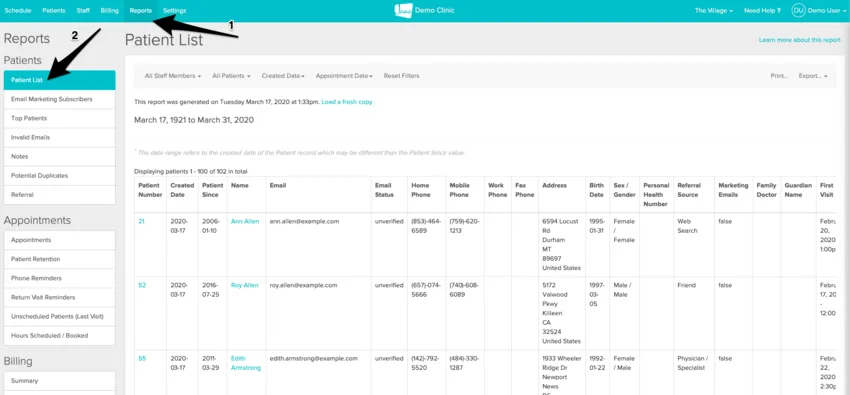
- Let the report load. Jane pulls your entire patient list by default, which is exactly what you want.
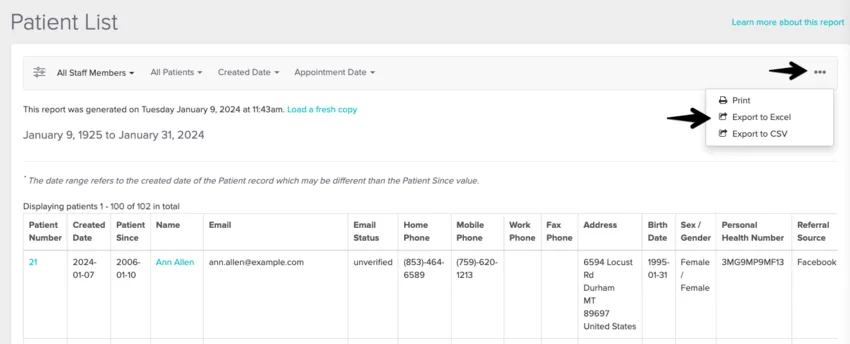
- Click the three dots at the top right of the report. You’ll see Export to CSV and Export to Excel. Pick CSV if you’re loading the list into an email platform, since that’s the format they all accept. Excel works fine if you just want to sort and review first.
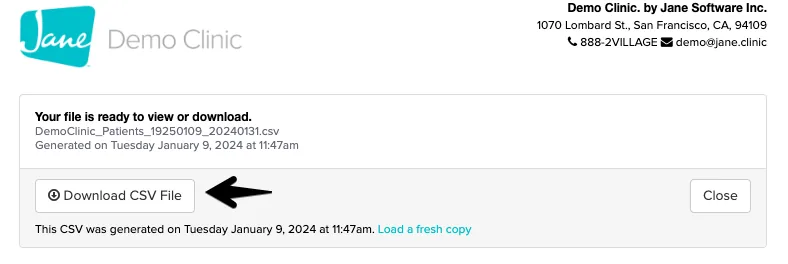
- Jane opens another page while it builds your file. Click the download button (it’ll say Download CSV File or Download to XLSX depending on what you picked) and save it somewhere you’ll find it again.
That’s it. The export includes every field from each patient profile, so names, emails, and phone numbers all come along.
Screenshots from Jane’s help guide.
Try this: open the file as soon as it downloads and scroll the email column. You’ll spot blanks and obvious typos in under a minute, and those rows are your first cleanup pass.
How do you pull your inactive patients from Jane?
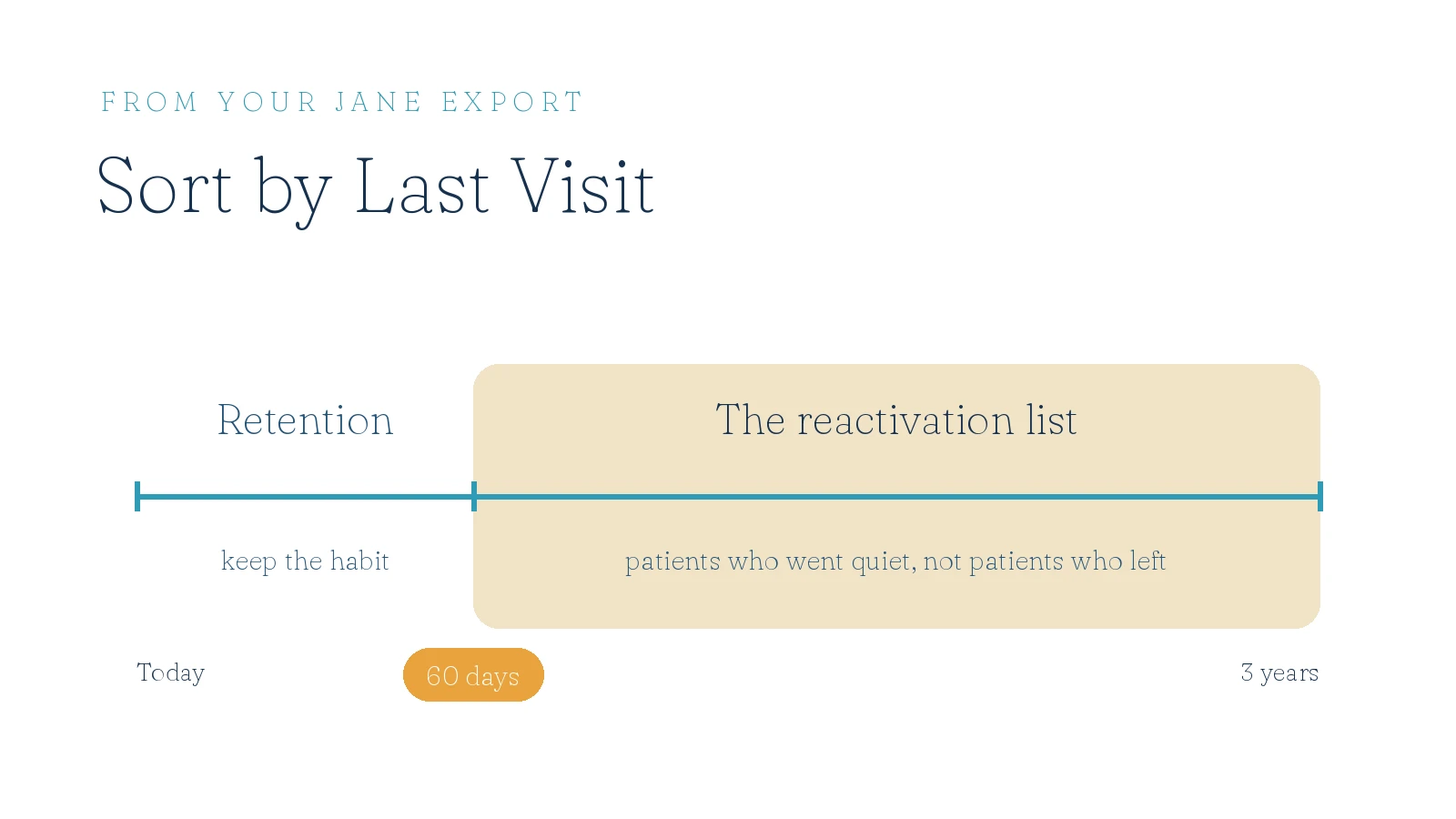
Export the full list first, then sort by the Last Visit column in your spreadsheet. Jane includes a first visit and last visit date for every patient in the export, and that last visit column is what turns a patient list into a reactivation list.
Sort the column oldest to newest and look at everyone whose last visit lands between 60 days and 3 years ago. That’s the quiet segment. These aren’t people who decided to leave your practice. They felt better, life got busy, and they went quiet. Quickest way if spreadsheets aren’t your thing: highlight the top row, turn on Filter, then click the dropdown on the Last Visit column and sort oldest to newest.
For the full plan on what to send them, start with how chiropractic patient reactivation works.
Try this: before you email anyone, have whoever runs your front desk skim the inactive names. In most offices they can pick out twenty people they know would come back with one personal note.
What should you do with the list before emailing it?
Clean it and validate it. Delete rows with no email address, fix the typos you can see, and run the list through an email validation service before any mass send. While you’re in there, remove duplicates. Patients who rebooked under a second profile show up twice, and nobody should get your reactivation email two times. Sending to dead addresses hurts your deliverability fast, and email platforms will throttle you for it. Ten minutes of cleanup protects every send that comes after.
If your practice uses more than one system, or you’re helping a colleague on different software, the same logic applies everywhere: here’s how to export your patient email list from any chiropractic EHR.
What this means for you
- ✓Your patient email list is sitting in Jane right now under Reports, Patient List.
- ✓The export takes five minutes and includes every email you've ever collected.
- ✓Sorting by last visit turns that export into a ready reactivation list.
- ✓A quick cleanup and validation pass protects your deliverability before you send.
Pro tip: sort by Last Visit, not Created Date. Created Date only tells you when the profile was made, which can be months before or after anyone was actually under care. Last Visit tells you who went quiet and when.
Want this kind of practical, inside-the-clinic teaching every week? That’s what The Chiro Courier is for. It’s our weekly email for docs and CAs who want their patient communication handled right.
And if you’ve pulled your list and you’re wondering what to actually send it, book a call and we’ll look at it together.
FAQ
Who can export the patient list in Jane?
Only the Account Owner or staff members with Full Access can open and export the Patient List report. Other access levels won’t see it.
Does Jane’s patient list export include email addresses?
Yes. The CSV export includes every field from each patient profile, including email, phone, and both first and last visit dates.
How far back should a reactivation list go?
Between 60 days and 3 years since the last visit. More recent than 60 days is retention territory, not reactivation, and those are separate systems.