
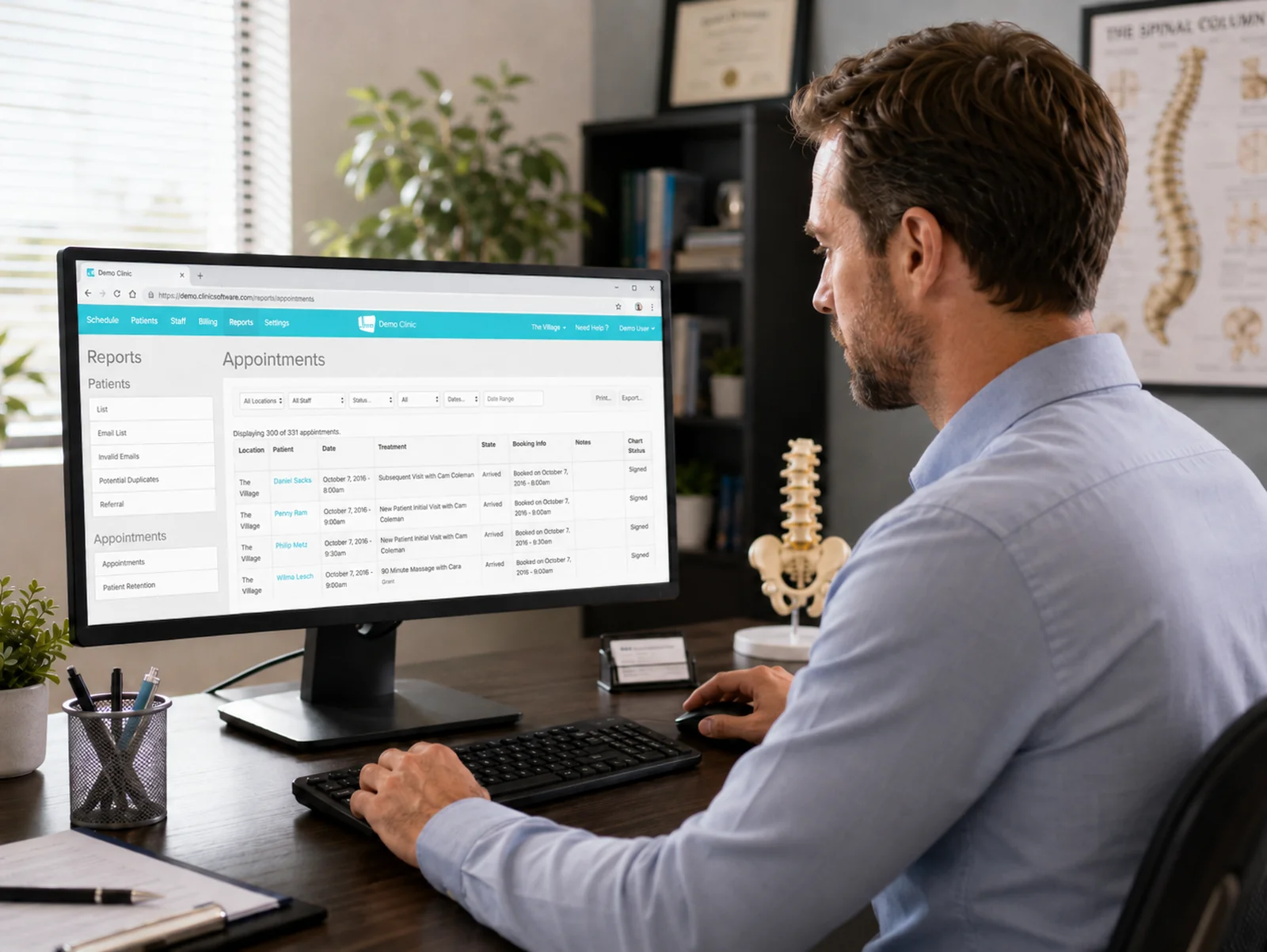
Your patient list is one of the most valuable assets in your practice, and most of you have never actually pulled it out of your EHR. Not because it’s hard. Because it sounds hard.
Here’s the part nobody tells you: you’re not exporting charts. You’re not exporting SOAP notes. You’re not moving clinical records anywhere. For Chiro Connect, you usually only need three columns. First name, last name, email address.
Last appointment date is the one optional field worth grabbing. It’s what turns a contact list into a reactivation list, and I’ll show you how at the bottom of this post. Birthday only matters if you want birthday emails later. That’s it. Everything else stays right where it is, inside your EHR, where it belongs.
One thing to settle before you start: your list is every patient with an email address on file. The email is the filter, not the calendar. No date range, no deciding how far back to go. If there’s an email on the record, that patient’s on the list. Old records stay in.
Most of these exports take about five clicks. Let’s walk through them.
What should you do before you export?
Keep the export as small and clean as possible. Before you start clicking, run through this:
- Make sure you’re logged in as someone with permission to run reports or export data.
- Export only the columns you need.
- Save the file as CSV or Excel.
- Remove extra columns before the file goes anywhere.
- Do not send full patient charts or clinical records. Ever. Nobody outside your practice needs them, including us.
- If you’re unsure, ask your EHR support team for a patient contact export, not a chart export.
If you’d rather let support do the clicking, use this exact language:
“Can you help me export a patient contact list of every patient with an email address on file, in CSV or Excel format, with first name, last name, email address, and, if available, last appointment date and birthday?”
That sentence tells them exactly what you need and, just as importantly, what you don’t.
How do you export a patient email list from ChiroTouch?
ChiroTouch gives you a simple patient roster export in the Cloud version, and a Data Export tool in the legacy desktop version. The steps are different, so find your version below.
ChiroTouch Cloud, the simple way
- Go to Patients.
- Click the Action Menu, usually shown as a three-dot menu.
- Select Download Patient Roster.
- Download the file.
- Open it in Excel or Google Sheets.
- Delete every row with no email address. Do this first, before anything else.
- Keep only first name, last name, email address, and last appointment date or birthday if they’re included.
ChiroTouch Cloud, the Analytics option
If you want more control over the fields:
- Go to the Analytics dashboard.
- Open the Patients tab.
- Find the Patient List report.
- Click the three-dot menu.
- Choose Export, then Raw Data.
- Select CSV or Excel.
- Increase the number of records so the export includes your full list, not just the first page.
- Export the file.
- Open it and delete every row with no email address, before anything else.
- Keep only the columns you need: first name, last name, email address, and the optional fields.
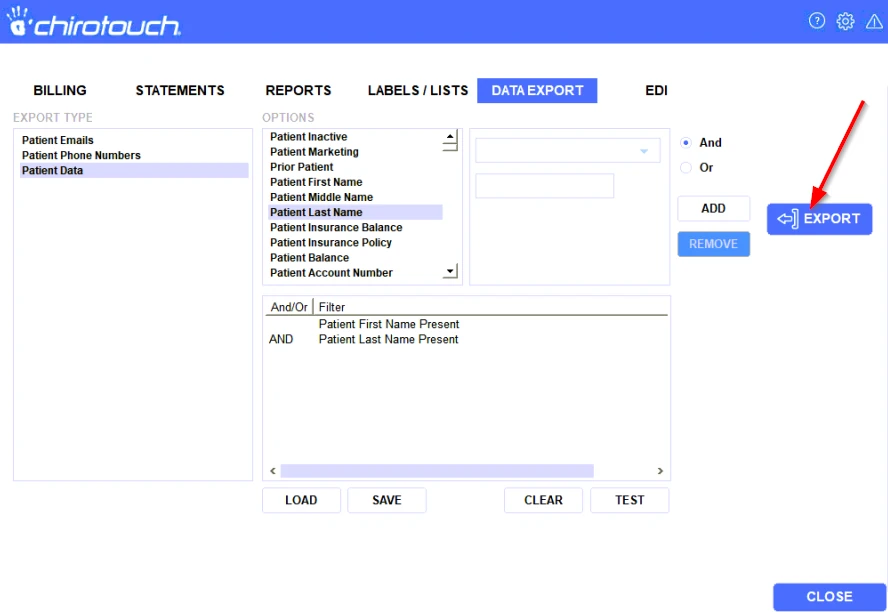
ChiroTouch legacy/desktop
- Go to Billing/Statement Reports.
- Click Data Export.
- Select Patient Data.
- Choose only the contact fields you need.
- Export to Excel or CSV.
- Delete every row with no email address. Do this first, before anything else.
- Trim the file down to first name, last name, email address, and the optional fields if available.
Source: https://chirotouch.my.site.com/cloud/s/article/Downloading-a-List-of-Patients
How do you export a patient email list from Jane?
Jane has one of the cleanest exports of any EHR on this list.
Want the full walkthrough with real screenshots of every click? Here’s how to export your patient email list from Jane.
You have two options depending on what you want.
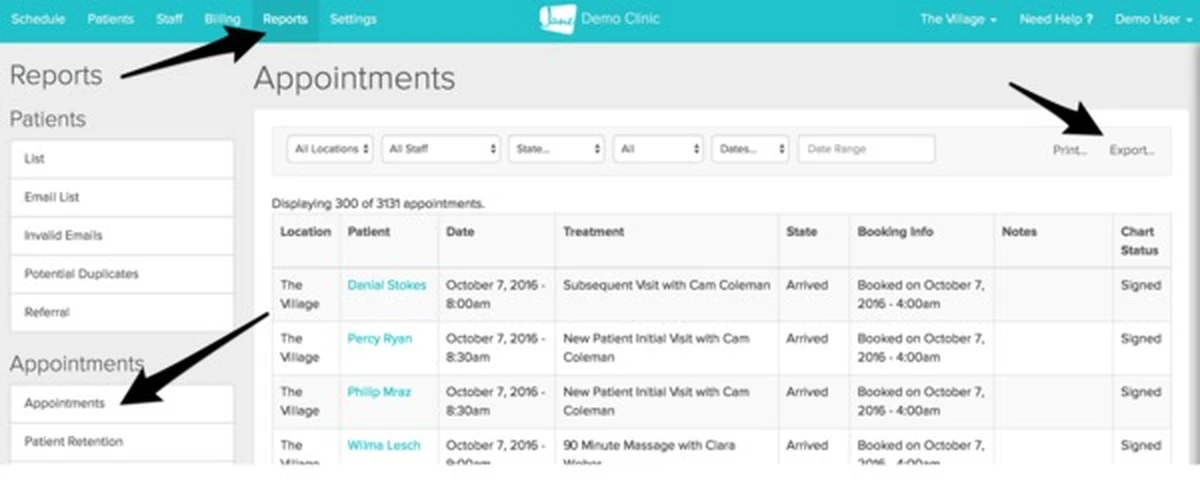
Option 1: the Patient List export
- Go to Reports.
- Open Patient List.
- Apply filters only if you need them.
- Click the three-dot menu.
- Choose Export to Excel or Export to CSV.
- Download the file, then delete every row with no email address before anything else.
- Keep only the columns you need.
Option 2: Email Marketing Subscribers
If you specifically want patients who’ve opted into marketing email, Jane has a report built for exactly that.
- Go to Reports.
- Open Email Marketing Subscribers.
- Export the list.
Jane notes this export can include first name, last name, and email address, which is everything you need.
Source: https://jane.app/guide/patients-reports
How do you export a patient email list from Genesis or ClinicMind?
Genesis and ClinicMind use the same patient list report path, and this one has a copy-and-paste step the others don’t.
- Log in to ClinicMind or Genesis.
- Go to Reports, then Patients.
- Choose Patient List.
- Select the export or report option you need.
- Click Search.
- Click the worksheet icon. A new page or tab opens with your export data.
- Select all the data and copy it.
- Open Excel.
- Paste into cell A1 using Paste Special, then Text.
- Save as CSV, comma delimited.
- Delete every row with no email address. Do this first, before anything else.
- Remove unnecessary columns so you’re left with first name, last name, email address, and the optional fields.
Source: https://cashpracticehelp.instantdocsbase.com/help/how-do-i-export-clients-from-billing-precision
How do you export a patient email list from ChiroFusion?
ChiroFusion runs its patient list through the Schedule screen’s reporting tool.
- Go to Schedule.
- Click Run Report.
- Choose Patient Reports.
- Select Patient List.
- Run the report.
- Export to Excel.
- Open the file and delete every row with no email address, before anything else.
- Keep only first name, last name, email address, and the optional fields.
ChiroFusion reports export to Excel, and ChiroFusion states data can be exported in standard formats like CSV as well.
Source: https://www.chirofusionsoftware.com/faq/
How do you export a patient email list from ChiroSpring, ClinicDr, or ChiroSpring 360?
These are all one system now. ChiroSpring and ClinicDr partnered to create ChiroSpring 360, and ClinicDr branding is moving to ChiroSpring for ClinicDr customers. The export path is the same.
- Click Reports.
- Click Patient Listing.
- Click Search.
- Click Select patients from all pages.
- Click Action.
- Select Export CSV.
- Open the CSV and delete every row with no email address, before anything else.
- Keep only the columns you need.
Do not skip step 4. If you don’t click Select patients from all pages, you’ll export the first page of patients and nothing else, then wonder why your 3,000-patient practice produced a 50-row file.
Source: https://chirospring.helpscoutdocs.com/article/466-exporting-data-from-chirospring
How do you export a patient email list from ChiroHD?
ChiroHD keeps this simple with a Patient List report under Reporting.
- Go to Reporting, then Patient List.
- Sort by last name or first name if you want.
- Filter by patient status if needed: Active, Inactive, Terminated, or All.
- Choose Download CSV.
- Open the CSV in Excel or Google Sheets.
- Delete every row with no email address. Do this first, before anything else.
- Keep only first name, last name, email address, and the optional fields if included.
ChiroHD also has an Advanced Patient Search under Live Location, then Reporting, with filters for demographics, visit settings, and case information. You can run a search there, download the CSV, and even save the search as a template. But for a basic email list, you don’t need it. Start with the Patient List report and only go to Advanced Patient Search if you have a real filtering reason.
What if you use zHealth?
Public step-by-step patient list export instructions weren’t available at the time of writing. zHealth confirms data can be provided in Excel or CSV format, so contact zHealth support and use the script from the top of this post: ask for a patient contact export of every patient with an email address on file, with first name, last name, email address, and optional birthday or last appointment date.
How do you clean up your patient list after exporting?
One cleanup move now, and it takes a couple of clicks. You already pulled the rows with no email address back when you exported, so all that’s left is duplicates. Open your file in Google Sheets or Excel first.
Remove duplicates. In Google Sheets, select your data, then go to Data, then Data cleanup, then Remove duplicates. In Excel, select your data, go to the Data tab, and click Remove Duplicates. Check the email column as your matching field so the same patient with two records collapses to one.
What’s left is your patient base. Real people, one row each, every one of them reachable.
If you want to go one step further, run the list through a free email checker before you ever send to it. Old lists always have dead addresses.
How do you turn your patient list into a reactivation list?
Subtract your active patients from your total list. Active means anyone who’s been on your table in the last 60 days. Everyone else on the list picked you, paid you, got results, and went quiet.
The fast way is the last appointment date column, which is exactly why this guide tells you to include it. Turn on a filter, open it on the last appointment date column, and filter for dates older than 60 days ago. Every row you’re looking at is your reactivation list, name by name.
If your export didn’t include last appointment date, run the export again with it included, or ask your EHR support team using the script at the top of this post. It’s one extra column and it’s the one that makes this list useful.
Pay attention to the people who went quiet in the last 60 to 90 days. Life got busy, they meant to call back, and now it feels a little awkward to restart. Those are the most doable reactivations on your whole list, and most practices never reach out to them at all.
What This Means for You
- ✓You don't need a full EHR export to start sending better patient emails. Three columns cover it.
- ✓Every major chiropractic EHR has a patient list export, and most of them take about five clicks.
- ✓Last appointment date is the column that turns your export into a reactivation list. Filter for anyone who hasn't been in for 60 days and you're looking at it.
- ✓If the export screen confuses you, your EHR support team can do it for you. You just have to ask for a contact export, not a chart export.
Pro Tip: Delete the extra columns before the file ever leaves your computer, not after. The fewer fields that travel with your patient list, the cleaner and safer the whole process is. Three columns in, three columns out.
Frequently Asked Questions
Do I need to export full patient records for email marketing?
No. A patient email list only needs first name, last name, and email address. Clinical notes, insurance information, phone numbers, and billing data should never leave your EHR for email purposes. If a service asks you for full patient records to send emails, that’s a red flag.
What file format should my patient list be in?
CSV or Excel. Every EHR in this guide exports to at least one of those formats, and both work fine. CSV is the simplest and most universal.
What should I ask my EHR support team for?
Ask for a patient contact export, not a chart export. Use this exact language: “Can you help me export a patient contact list of every patient with an email address on file, in CSV or Excel format, with first name, last name, email address, and, if available, last appointment date and birthday?”
What if my EHR isn’t on this list?
Nearly every practice management system has some version of a patient list or patient roster report, usually under Reports. If you can’t find it, the support script above works with any EHR support team. Or take a screenshot of your reports dashboard and ask ChatGPT what to click next. It’ll walk you through it.
Once you have the file, don’t overthink it. Chiro Connect doesn’t need your full patient records. We only need a clean email list so your practice can stay connected with the people who already trust your care.
Need help turning that patient list into consistent, done-for-you emails?